Additional Windows Software and Software Settings
On This Page
Before We Start
I recently built a new PC and downloaded some extra software to make it easier to use. This article is meant to help me restore the computer to the familiar style and setup I like after reinstalling the system. It may also serve as a reference for others with similar needs.
Additional Windows Software
These are some programs I currently use to make Windows more convenient.
| Software name | Description |
|---|---|
| Clash-for-window | Without this, I cannot even download Chrome |
| Chrome Browser | The strongest browser on the planet, used to download other software |
| 7-zip | Open-source compression and decompression software for Windows |
| everything | Essential for finding files |
| Vmware-workstation | Virtual machine software; I need one Windows 10 VM for playing galgames and one Linux VM for development |
| PotPlayer | Video player |
| Typora | A great Markdown writing tool. I started using it from the free 0.7 version and eventually became a paid user |
| YACReader | A great local comic reader that can also create a local comic library |
| Visual Studio code (VS code) | A lightweight code editor that works very well on both Windows and macOS |
| Steam | Essential for entertainment |
| Windows terminal | An excellent terminal tool for Windows; use it with oh-my-posh for the best experience |
| Fliqlo | Desktop screensaver |
| Mircosoft Todo List | Set daily tasks |
| Koodo Reader | Open-source reading software for Windows |
| codex | A powerful tool that tries to help you solve any problem |
| rime | Weasel, an excellent input method |
| python3 | A dependency for writing small utilities, replacing anaconda3, which is too heavy |
| git | Version control for notes and code, usually synced to GitHub |
Software Settings
Rime
When we use fu pan to try to type “复盘”, we may find that it fails because of a bug related to Traditional Chinese to Simplified Chinese conversion.
We can create a custom_phrase.txt file in the user folder with the following content:
1 2 | |
Note: the separator in the middle must be a Tab, not spaces.
Then right-click Weasel and redeploy the service.
Sync Backup
The official multi-device sync method recommended by Rime is to set sync_dir in installation.yaml, then use “Sync user data”.
The official documentation states this clearly: during sync, user dictionaries are generated or merged into *.userdb.txt snapshots, and non-auto-generated YAML and .txt files in the user folder are backed up one-way to the sync directory. Typical files in the sync directory include installation.yaml, default.custom.yaml, weasel.custom.yaml, and *.userdb.txt.
- Open
installation.yamlin the user folder - Add a line, for example:
1 | |
- Save and redeploy
- Run “Sync user data” in Weasel
Note: syncing user data includes two actions: pull + push.
It first pulls existing user dictionary snapshots from the sync directory and merges them into the current dictionary, then pushes the current user configuration and new dictionary snapshot back to the sync directory. If the sync directory is empty, it simply backs up the current configuration there; if it is not empty, it merges first and then backs up.
Edge Settings
Purpose: prevent searches from redirecting to cn.bing.com, and use New Bing instead.
As the browser bundled with Windows, Edge is sometimes not as good as Chrome, but it is still good enough for some everyday use.
The first issue is that when searching with Bing, the region is forcibly set to China, which prevents access to useful AI tools such as New Bing.
The cause is the search engine setting for the search bar. Go to Edge Settings --> Privacy, search, and services --> Address bar and search --> Manage search engines, as shown below.
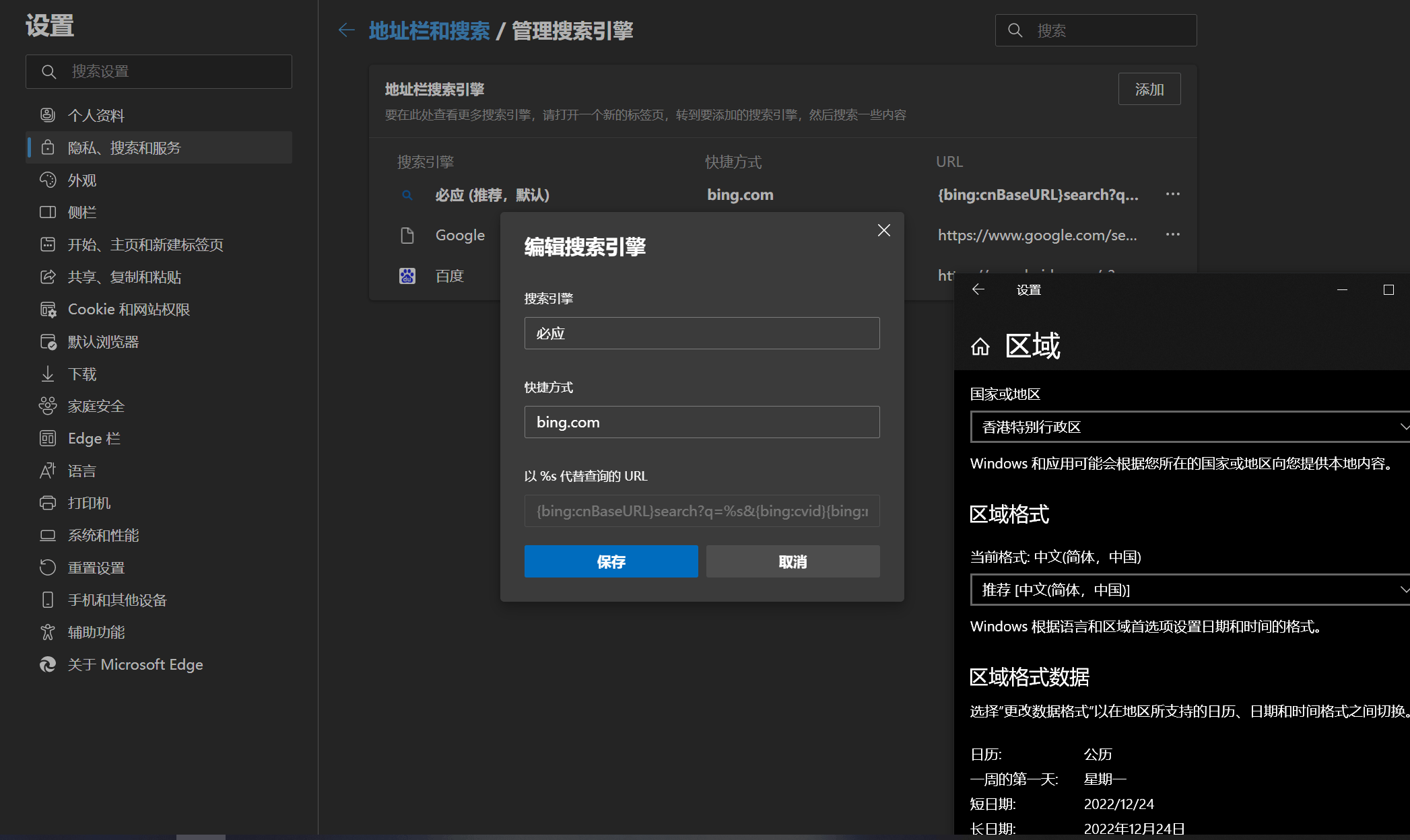
Just modify the query URL, or add a new one and set it as the default.
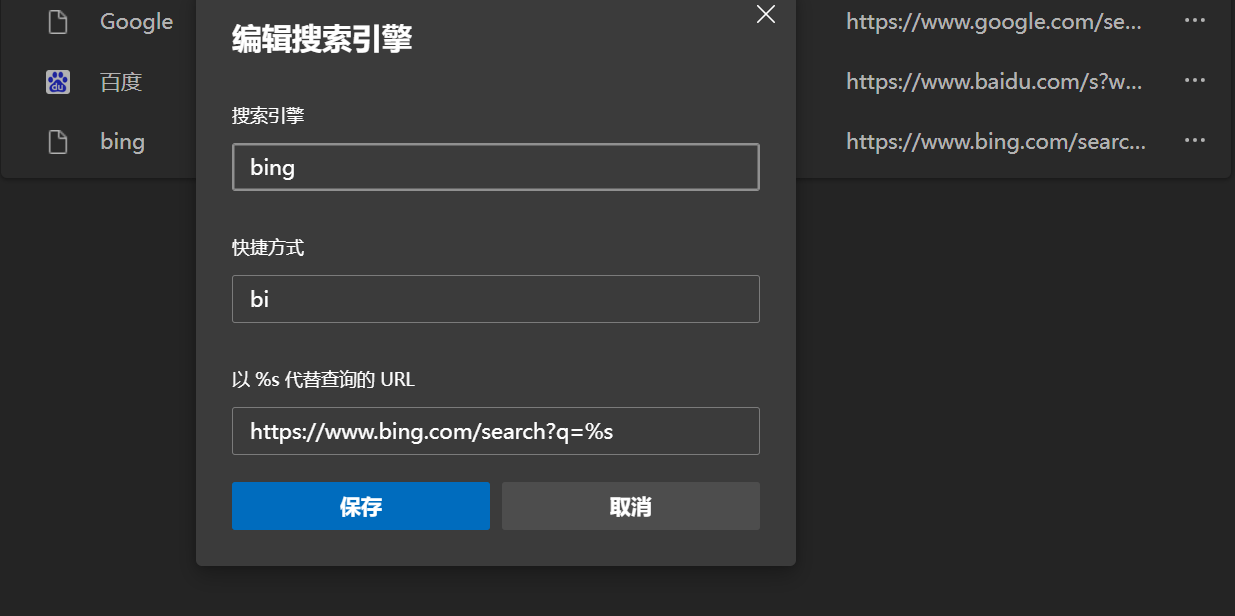
That is all. I referenced this article1.
- Vertical tabs
- Hide title bar
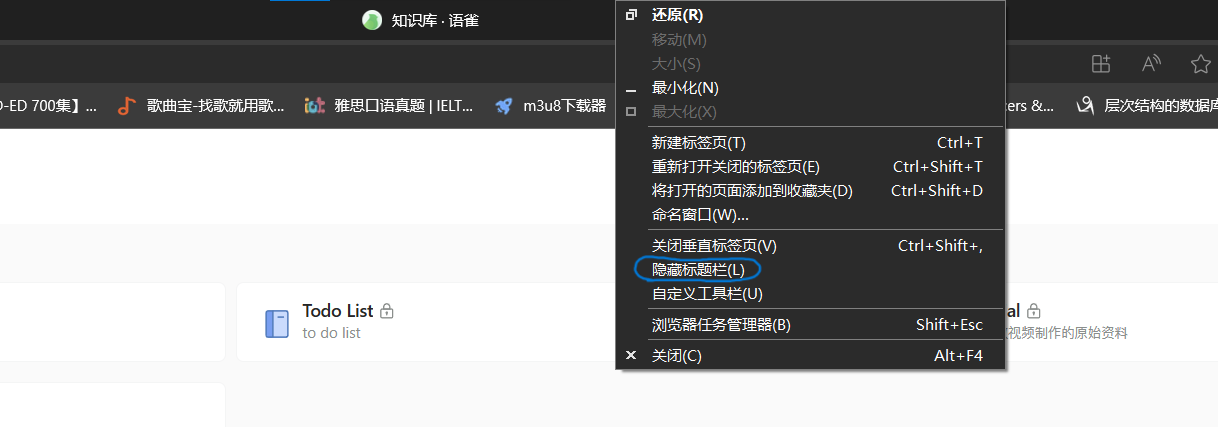
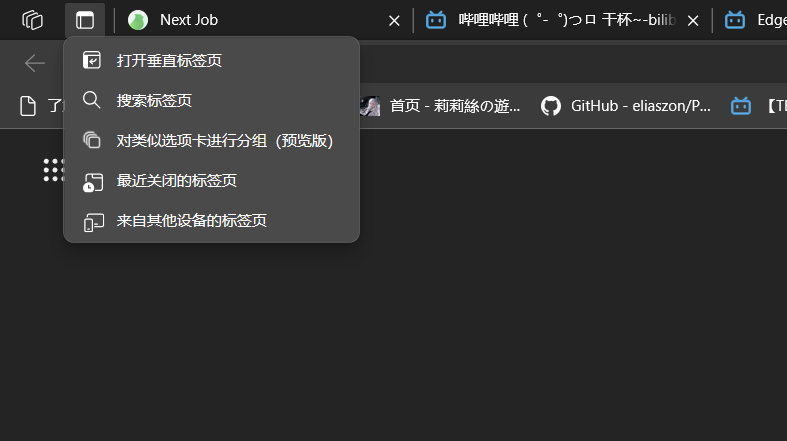
- Other settings
You can explore other homepage settings yourself.
Fliqlo Settings
Purpose: use a global shortcut key to launch the desktop screensaver. Note that it does not work when software is in fullscreen mode.
Method 1: Pin the Fliqlo Shortcut to the Start Menu
- Create a Fliqlo shortcut and place it on the desktop
- Open the Start Menu folder. This folder is usually located at
C:\ProgramData\Microsoft\Windows\Start Menu\Programs. Drag the shortcut into it; administrator permission is required - Open the Start Menu, find the Fliqlo shortcut, right-click it, and pin it to Start
Method 2: Create a Desktop Shortcut Directly and Set a Shortcut Key
- Note that this method cannot hide the desktop shortcut. Otherwise, after the next startup, the shortcut key will no longer work. This approach leaves a shortcut on the desktop, but I prefer a clean desktop, so I gave up on this solution
Windows Terminal Optimization
Purpose: beautify the terminal and enable built-in administrator privileges for the terminal.
The main approach is to use the oh-my-posh theme to optimize Windows Terminal.
Then there are some Windows Terminal visual improvements and command-line completion settings2.
1 2 3 4 5 6 7 | |
For details, see the reference video.
Next is enabling administrator privileges by default. Use the elevate property so it opens automatically as administrator3. Also, set the startup directory to the project folder by default: E:\\Personal_Project.
The JSON code is as follows:
1 2 3 4 5 6 7 8 9 10 | |
PotPlayer Settings
Purpose: make the player easier to use.
This software has far too many configurable options. The most important ones are hardware decoding, or H/W GPU decoding, and software decoding, or CPU decoding.
See the reference video for details4.
Visio
Download and activation: Microsoft Visio Professional 2019_visio 2019-CSDN Blog