Windows System Settings
On This Page
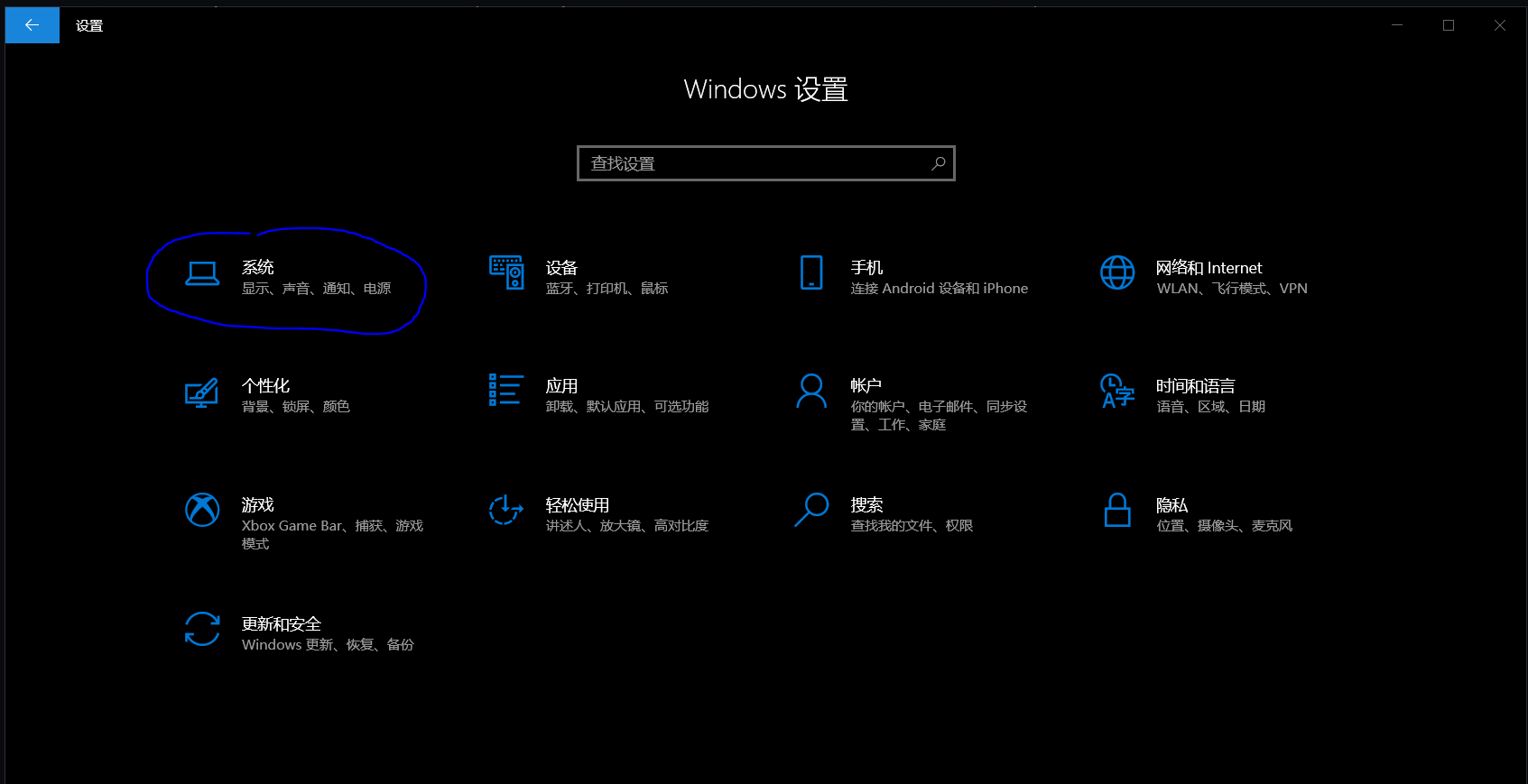
Windows 10 Settings
First are some system settings. This section refers to a Bilibili video1.
- Change the computer name
Press Win + I to open Settings, click the first item, System, then scroll to the bottom of the left sidebar and open About. There you can see the option to rename this PC.
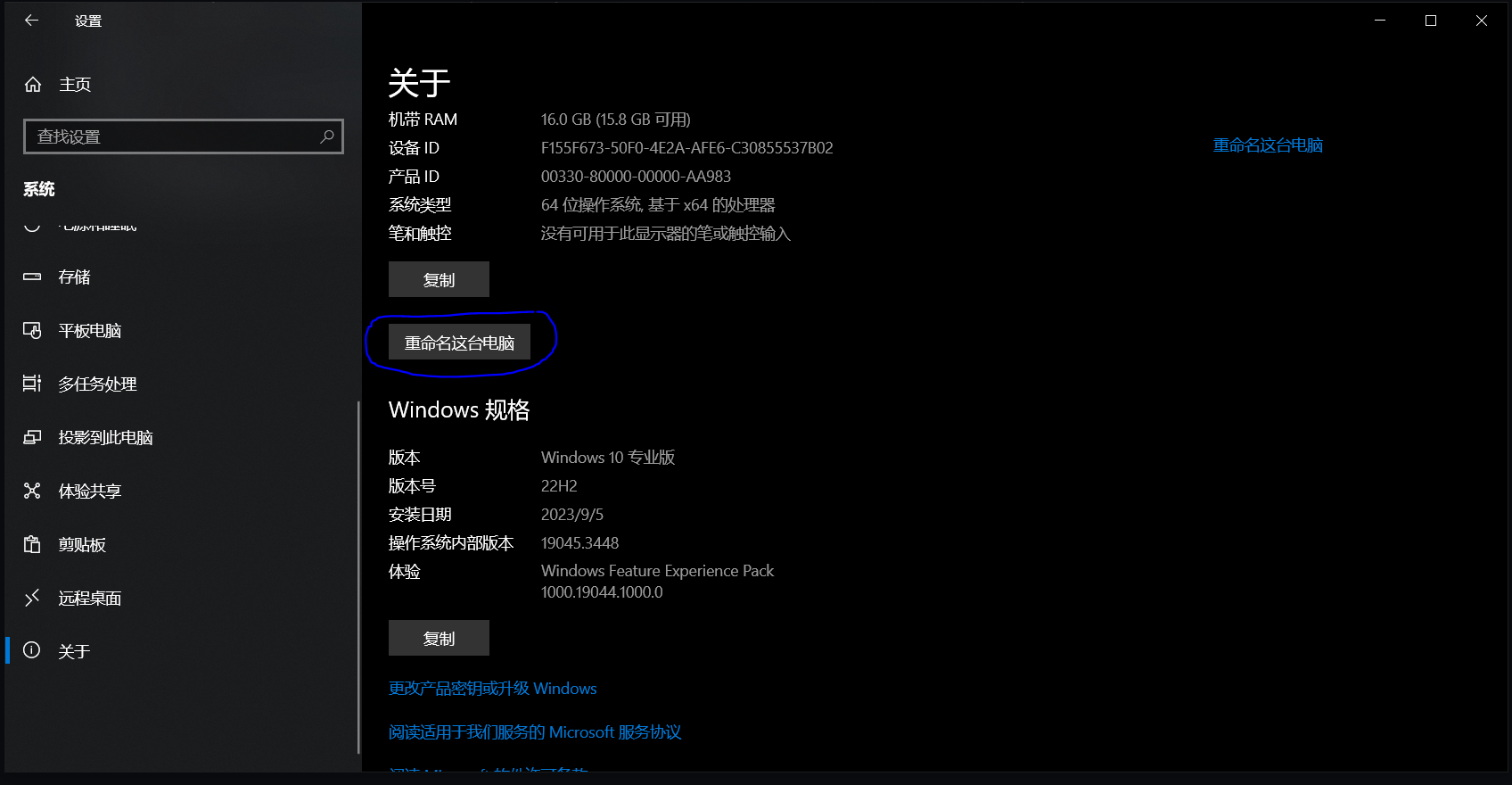
Restart the computer after renaming it.
- Rename the user account
Refer to this article: windows - Change the user account name (Windows 10)_Change Windows username_CSDN Blog
Taskbar Settings
Find the taskbar at the bottom of Windows and right-click it. Disable anything you do not want to display. I usually keep it like this.

Click Search (H), and I choose to hide the search icon because it is not very useful. I often use Win + Space for search instead. Click News and interests (N), and I choose to turn it off. Then click Taskbar settings (T) at the bottom.
Under Notification area --> Turn system icons on or off, keep only the icons you want.
Turn off the News and interests and People section.
As for the apps in the lower-left corner, set them however you like.
System Settings
Open Settings (Win + I).
- Remove apps
Find Apps and uninstall anything you do not want or do not like. Generally, if you used the official Microsoft installation image, there will not be that many extra apps.
- Privacy settings
Go to Privacy settings --> General and turn off all tracking options.
Turn off Contacts and Phone calls.
Under Background apps, turn off software you do not use often.
- Start menu settings
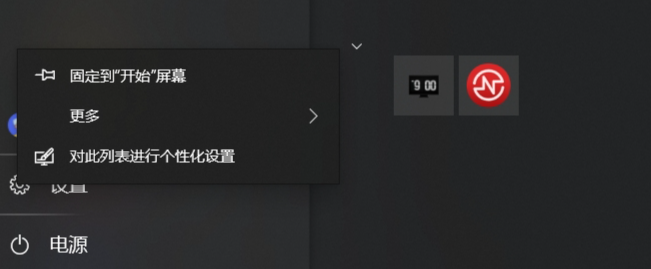
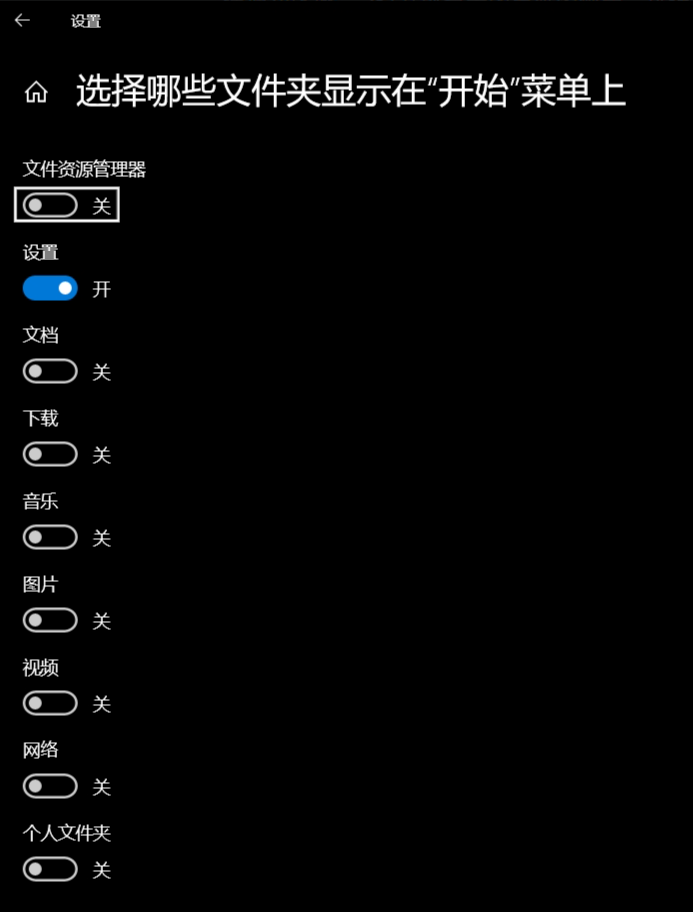
Press the Win key to open the Start menu, select the Settings icon, right-click it, and choose Personalize. You can choose which icons appear on the Start menu.
Personally, I only keep the Settings option.
File Explorer Settings
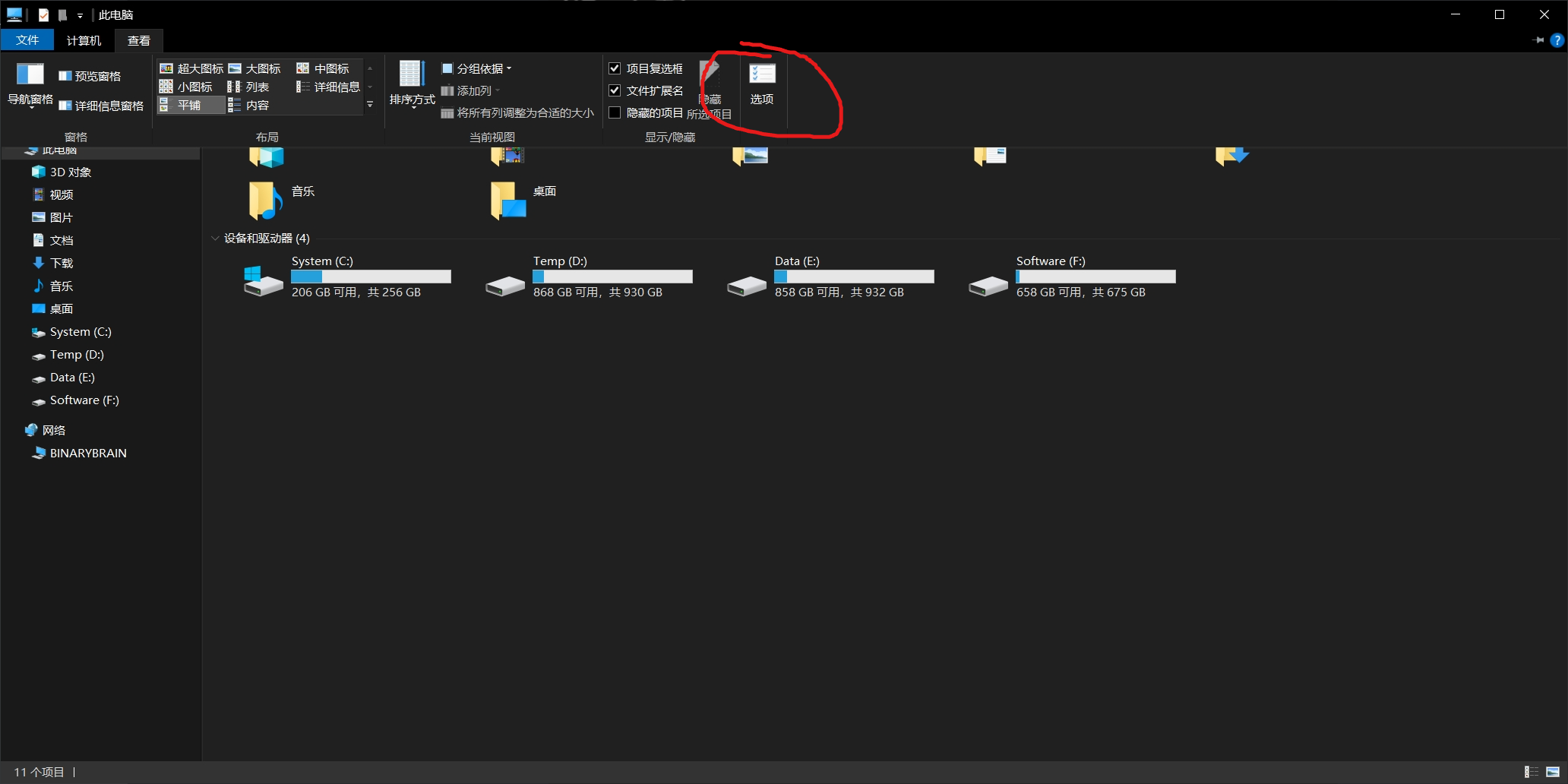
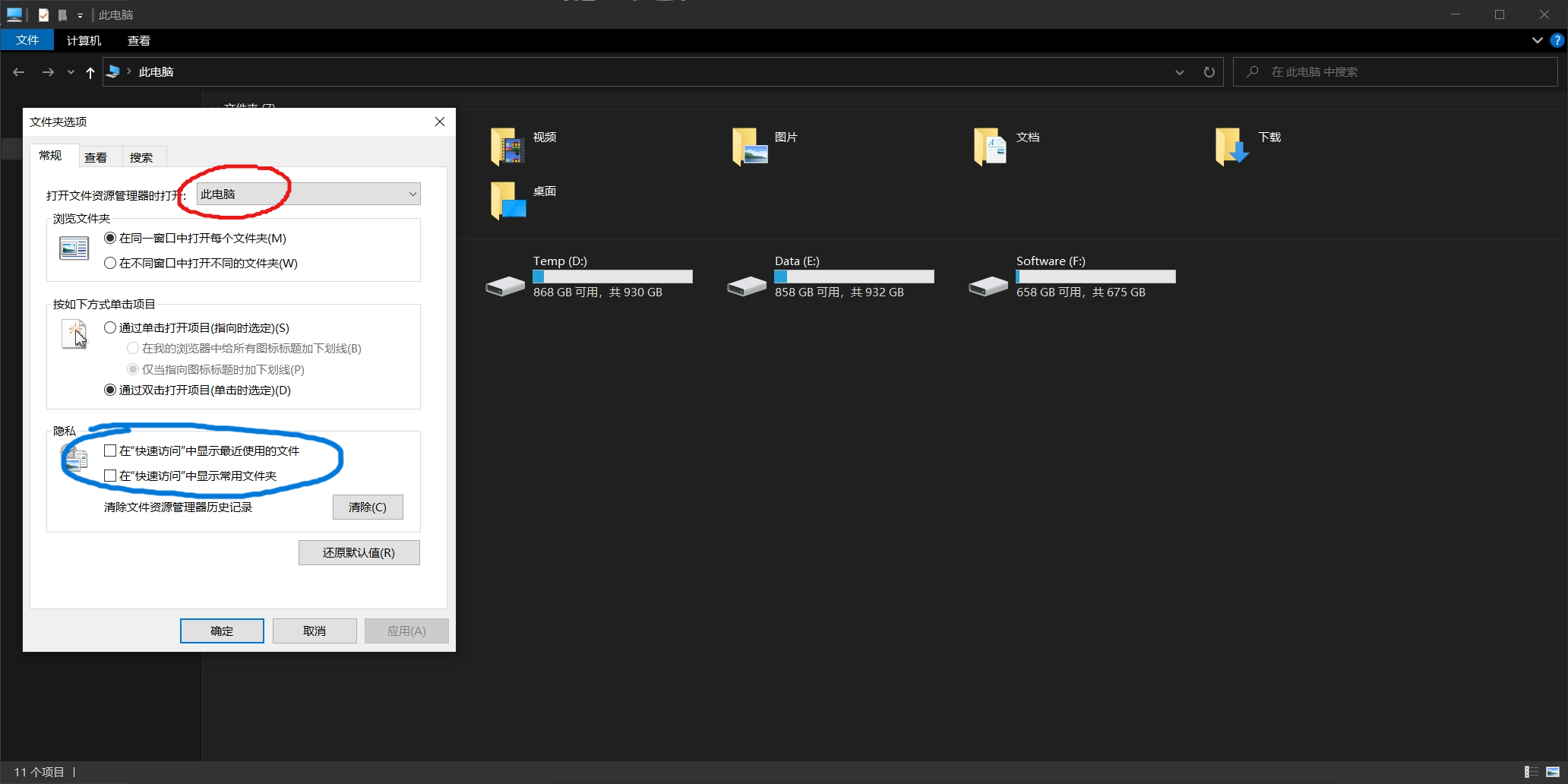
View --> Options --> Open File Explorer to: This PC
At the same time, I disable Show frequently used folders and Show recently used files in Quick Access, and I also remove the four pinned items in Quick Access.
For the five system folders on the left side, Videos, Documents, Downloads, Music, and Pictures, change their paths to drive E:.
Create five folders with the same names on drive E:, then select Videos on the left, right-click it, choose Properties --> Location --> Move, and select the newly created folder with the same name.
- About Quick Access
I usually use it like this: in the Data drive, create one frequently used folder, such as English Vocabulary Notes, pin it to Quick Access, and then hide it in the Data drive. This keeps things clean.
As mentioned above, I hide the Downloads, Videos, Pictures, and Music folders after moving them to the Data drive. This way, I can access them directly through This PC in the sidebar without opening the Data drive.
Default Applications
Change the default app for opening PDF files to Edge: How to change the default PDF opener to Edge_win10 PDF always opens with Edge-CSDN Blog
Activate Windows
Refer to this link.
Startup Programs
In this path:
1 | |
You can place startup programs for Windows 10. You can also write your own programs and put shortcuts to them here.