A Complete Guide to Using the SSH Client
On This Page

Before We Begin
When we use SSH to connect to a remote server, we need to enter a username and password to log in. For example:
However, this can introduce security risks. For instance, a server with a public IP address may face brute-force password attacks. For security reasons, we typically use SSH keys.
Connection Basics
An SSH connection typically consists of the following:
User: The username used to log in to the remote serverHostName: The remote server's public IP address, private IP address, or domain namePort: The port the SSH server listens on; the default is22Authentication: The authentication method, such as a password or SSH key
The most basic connection command is:
1 | |
If the SSH server uses a port other than the default port 22, specify the port:
1 | |
Create a Key Pair
Use the following command to generate an SSH key:
1 | |
-t: Type; specifies the algorithm as RSA
-b: Bits; specifies the key length in bits. At least 2048 bits is recommended for RSA.
-C: Comment; adds a comment
-f: File; specifies the output filename
This generates ~/.ssh/<key-filename> (the private key) and ~/.ssh/<key-filename>.pub (the public key).
During generation, we can choose whether to protect the private key with a passphrase. If we do, we need to enter the passphrase when logging in to decrypt the private key.
The comment we provide (note) is recorded at the end of the public key file. You can open the .pub file to view it.
Choose a meaningful filename, such as Singapore-Linux-VM-SSH-Key.
For example:
1 2 3 4 5 6 7 8 9 10 11 12 13 14 15 16 17 18 19 20 | |
Note
In Windows PowerShell, this command may fail after prompting you to enter the passphrase twice, producing the following error:
powershell
Generating public/private rsa key pair.
Enter passphrase (empty for no passphrase):
Enter same passphrase again:
Saving key "~/.ssh/github-ssh-key" failed: No such file or directory
This happens because some versions of PowerShell do not expand ~ before passing it to the command.
See, for example, Powershell does not expand '~' for external programs · Issue #20031 · PowerShell/PowerShell.
Install the Public Key
Now that we have generated an SSH key pair, we need to add the public key to the remote server.
Use ssh-copy-id
1 | |
If you use the default port 22, you can omit the -p <ssh-port> argument.
For example:
1 2 3 4 5 6 7 8 9 10 | |
Note
The ssh-copy-id command is unavailable in Windows PowerShell. You can open Git Bash to run it instead.
Add authorized_keys Manually
If the command does not work, we can add the public key to the server manually.
First, log in to the server, open ~/.ssh/authorized_keys, and paste the contents of the file ending in .pub into it.
Add a Key in the Cloud VM Console
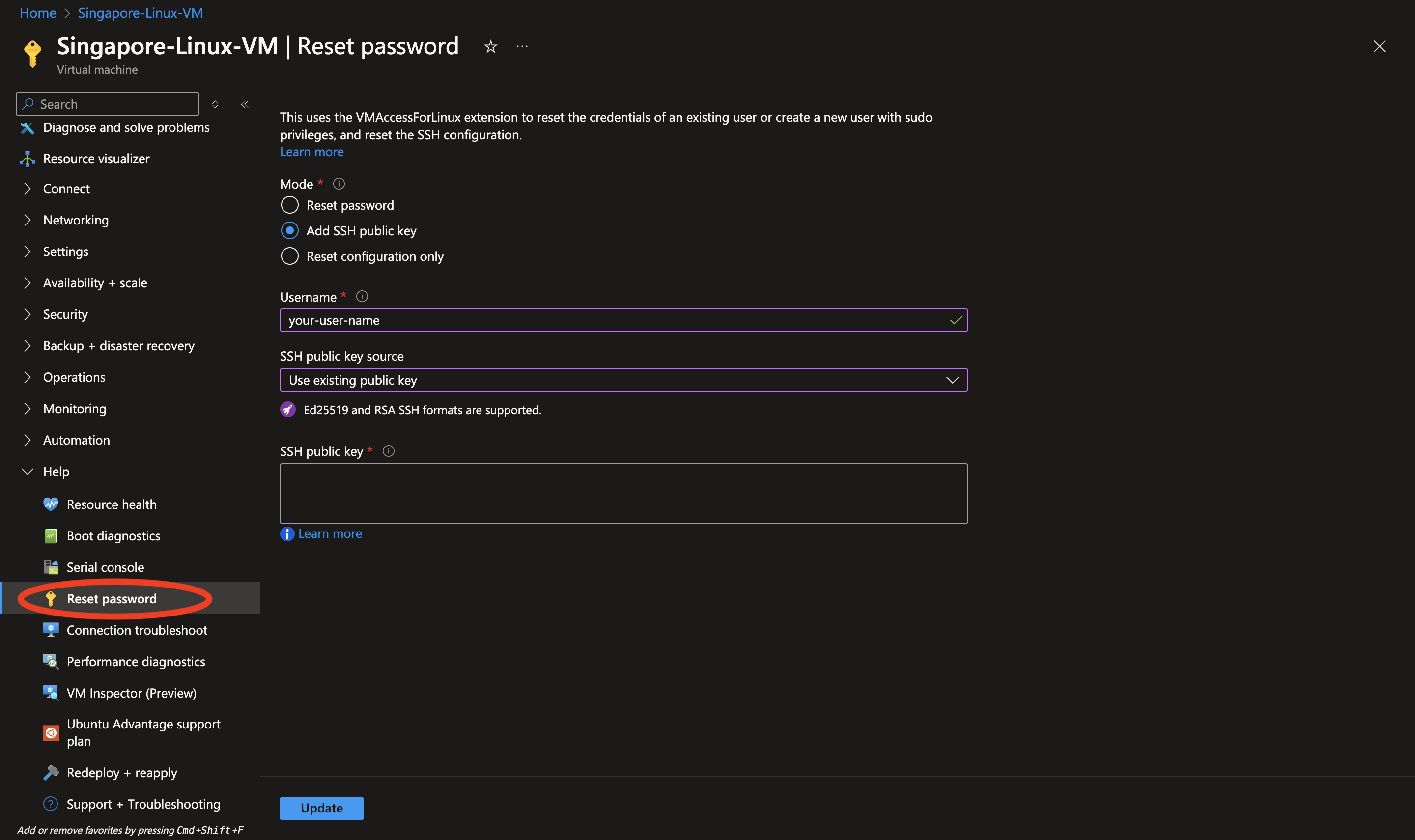
If you use an Azure Linux VM, you can add an SSH public key in the Azure portal.
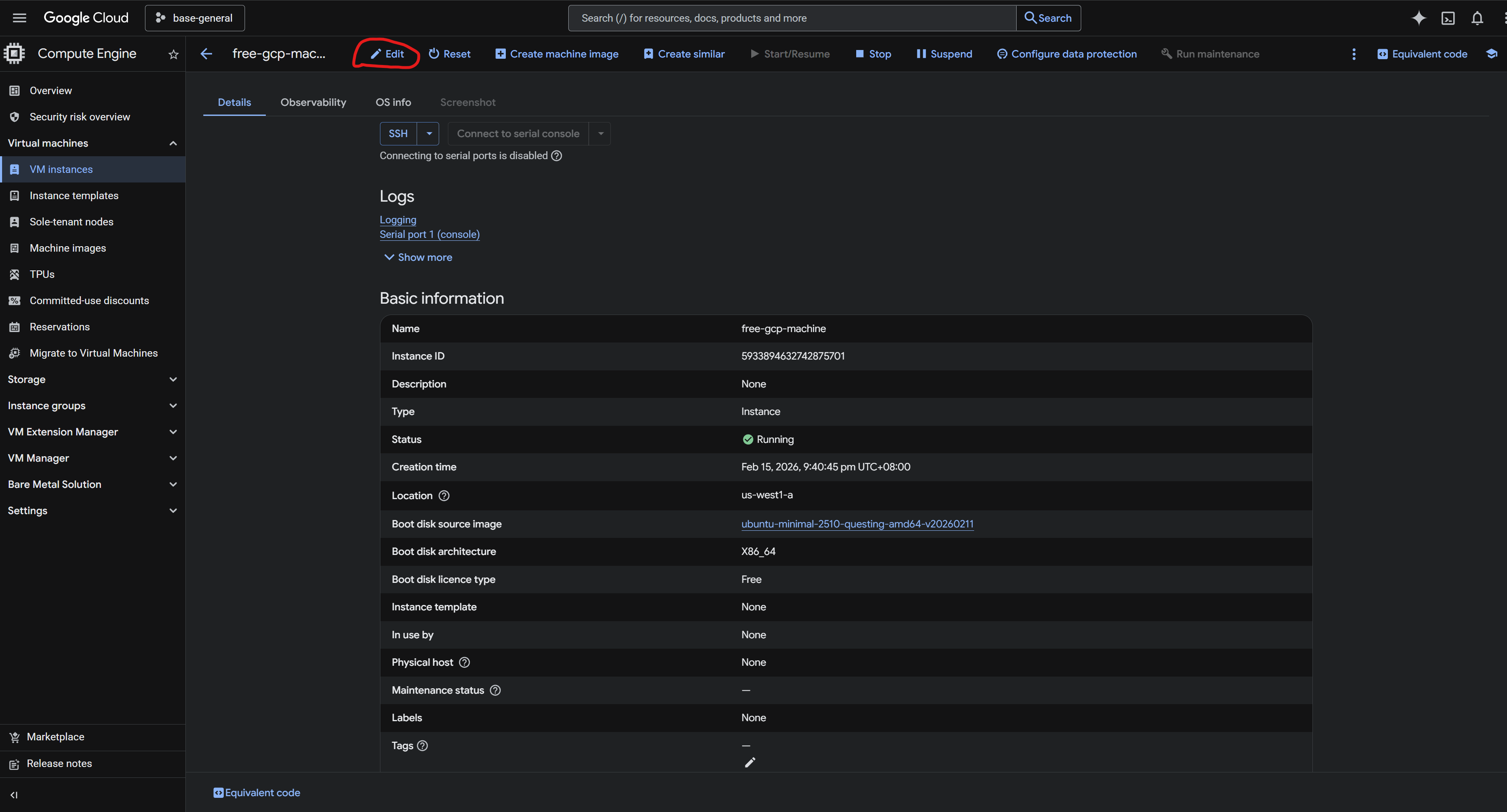
In GCP, open the VM instance's edit page:
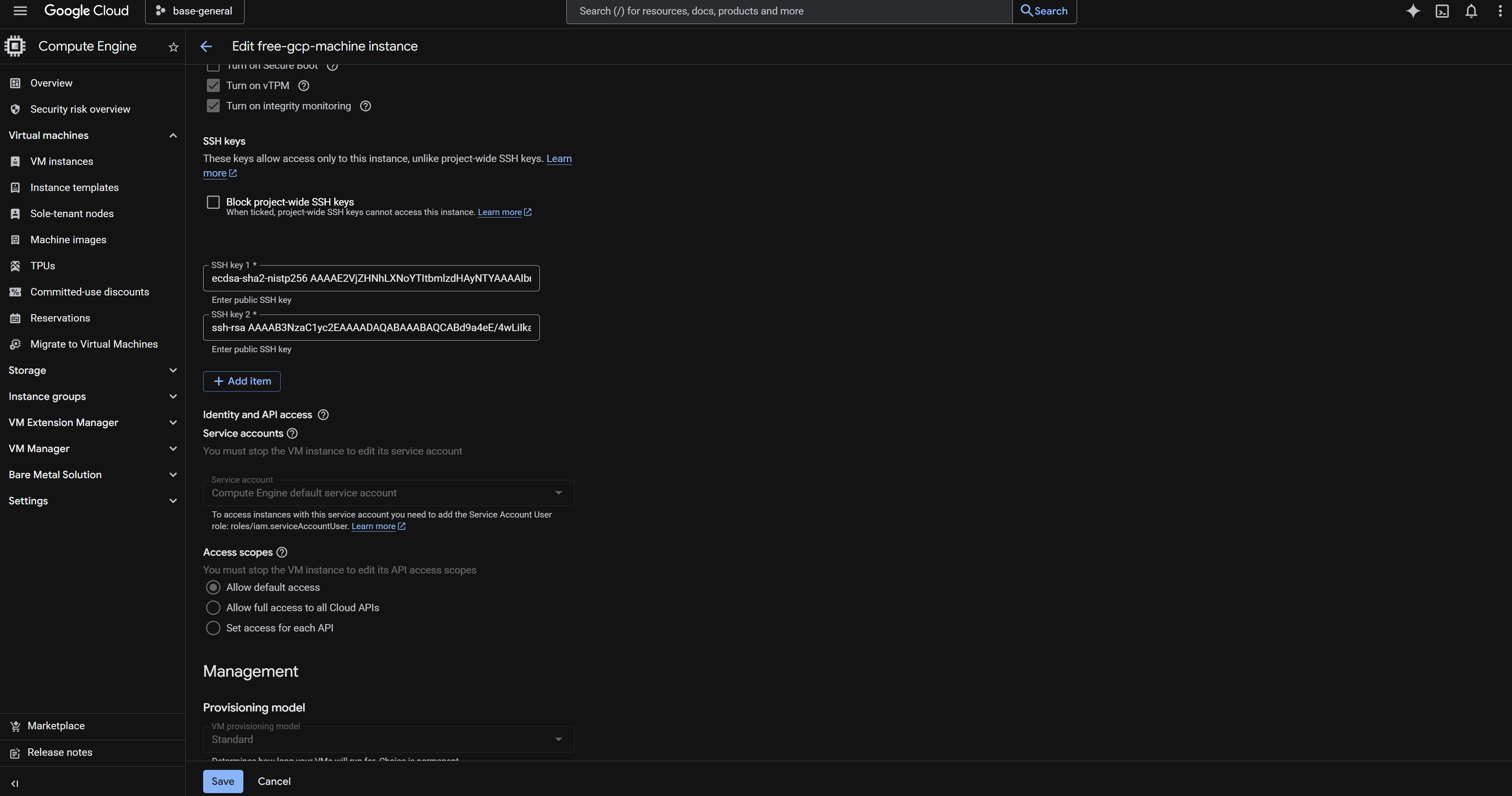
On the edit page, scroll down to find the SSH key section.
Connect with a Key
If we simply run ssh username@remote-server-ip, SSH will, by default, only try keys with default names such as id_rsa.
We therefore need to specify the key on the command line:
1 | |
For convenience, we usually add settings to ~/.ssh/config so that SSH automatically knows which key to use for the connection.
SSH Config
The SSH client can store connection settings in ~/.ssh/config. This lets us give a set of connection settings a name (a host entry) and log in quickly with ssh <Host>, without entering a long list of arguments each time.
Basic Host Entry
A minimal configuration looks like this:
1 2 3 4 | |
This configuration tells the SSH client to use the specified host, user, and key when we run ssh remote-server.
Option Reference
In practice, a host entry may also include settings for the port, agent, key selection, keepalive behavior, and more.
Here is a more complete configuration:
1 2 3 4 5 6 7 8 9 10 11 | |
IdentityFile ~/.ssh/id_rsa
Try this key first.
AddKeysToAgent yes
After successful authentication, the SSH client automatically adds the decrypted key to ssh-agent. This has no effect if ssh-agent is not running.
Without this setting, ssh-agent will not automatically receive your key when you connect to a server over SSH. You will need to add the key manually with ssh-add.
IdentitiesOnly yes
Use only the ~/.ssh/id_rsa key for public key authentication when connecting; do not try additional keys.
ServerAliveInterval 20
The SSH client sends an application-level heartbeat to the server every 20 seconds to prevent the connection from being dropped as idle.
ServerAliveCountMax 6
The SSH client disconnects only after six consecutive heartbeats go unanswered, preventing an immediate disconnection during brief network interruptions.
TCPKeepAlive yes
Enable keepalive at the operating system's TCP layer.
IPQoS none
Do not set DSCP/QoS markings on SSH traffic. This works around disconnections or throttling caused by network devices that mishandle certain QoS markings.
Tip
In VS Code's Remote-SSH extension, Remote-SSH: Open SSH Configuration File... opens this same file for editing.
Changes to ~/.ssh/config take effect immediately for new SSH connections. You do not need to restart Windows, and usually do not need to restart ssh-agent.
SSH Agent
If our SSH key has a passphrase, we need to enter it every time we connect. For convenience, we can use ssh-agent to store the decrypted private key in memory. This lets us enter the passphrase once and reuse the key throughout the session.
Windows
Check the ssh-agent service:
1 | |
Start the service:
1 | |
Set it to start automatically:
1 | |
Add an SSH key to ssh-agent:
1 | |
List the SSH keys that have been added:
1 | |
Linux/Mac
First, check whether ssh-agent is already running:
1 | |
If ssh-agent is running, this displays its process ID (PID). If it is not running, the output is empty.
If the output is empty, start ssh-agent with the following command:
1 | |
Add the SSH private key:
1 | |
Persistence
To make ssh-agent persist across sessions, you can add these commands to your shell configuration file.
For Bash (~/.bashrc or ~/.bash_profile):
1 2 3 | |
After saving the file, reload the configuration:
1 | |
With this setup, ssh-agent will start automatically and add your SSH keys whenever you open a new terminal session.
SSH Agent for AI Coding Agents
When using a coding agent such as Codex, SSH Agent introduces an additional issue: the process in which the coding agent runs ssh or git push may not share the same shell session as the terminal we use manually.
If an SSH private key has a passphrase, we can enter it on first use in a regular terminal and then add the decrypted key to ssh-agent. However, a coding agent usually cannot prompt us to enter a passphrase while a command is running. If it also cannot access the current session's SSH_AUTH_SOCK, it cannot reuse the unlocked key.
A straightforward but less desirable approach is to remove the passphrase from the private key. The coding agent can then use the key directly, but this carries a risk: anyone who can read the private key file can use it immediately.
A better approach is to let the coding agent use ssh-agent instead of directly holding a private key without a passphrase.
The Core Idea
SSH_AUTH_SOCK points to the ssh-agent socket. This socket is not a file that stores decrypted keys; it is an entry point to the ssh-agent process.
The decrypted private key itself resides in the ssh-agent process's memory. Other programs send requests through the socket, asking ssh-agent to sign on their behalf, without reading the private key itself.
The authorization model therefore looks like this:
1 | |
In other words, we can give the coding agent access to the agent socket so that it can use the key during the current authorization window. Once the key is removed from the agent, the agent exits, or the socket is no longer exposed, the coding agent can no longer use that key.
Fixed Agent Socket
In a regular terminal, SSH_AUTH_SOCK usually points to the agent socket for the current shell session. However, in environments such as VS Code Remote-SSH, GUI apps, extension hosts, and task runners, different processes may not share the same shell session.
Relying solely on inheritance of the SSH_AUTH_SOCK environment variable is therefore unreliable. A more reliable approach is to use an agent socket at a fixed path, such as:
1 | |
Then have ssh-agent listen on that socket:
1 2 3 4 5 6 7 | |
If you want every new terminal to use this fixed socket automatically, add this snippet to ~/.bashrc or the configuration file for your shell.
IdentityAgent
In addition to setting SSH_AUTH_SOCK in the shell, you can use IdentityAgent in ~/.ssh/config to make OpenSSH consistently use a specific agent socket.
For example:
1 2 3 4 5 6 | |
With this configuration, even if the coding agent was not launched from the current terminal, OpenSSH will find the same ssh-agent through IdentityAgent ~/.ssh/agent.sock whenever the coding agent runs a standard ssh or git push command.
AddKeysToAgent yes tells the SSH client to try adding the decrypted key to the agent after the key is used successfully. This requires the agent to be running and accessible to the SSH client.
Temporary Authorization
If we want a key to remain available only for a limited time, we can use ssh-add -t:
1 | |
This adds the key to the agent but keeps it there for only one hour.
We can also remove it manually when it is no longer needed:
1 | |
Or remove all keys from the current agent:
1 | |
This approach works well for coding agents: we keep the private key protected with a passphrase and temporarily add it to ssh-agent when needed. The coding agent can use the key during this authorization window, but cannot continue using it after the window ends.
VS Code Remote-SSH
With VS Code Remote-SSH, VS Code starts VS Code Server on the remote machine, and extensions may also run there. The extension host and integrated terminal are on the same machine, but do not necessarily share the same shell session.
As a result, temporarily running export SSH_AUTH_SOCK=... in the integrated terminal does not guarantee that the Codex extension can see the variable.
A more reliable approach is to:
- Use a fixed socket on the remote machine, such as
~/.ssh/agent.sock. - Point to it with
IdentityAgent ~/.ssh/agent.sockin~/.ssh/config. - Manually run
ssh-add -t 1h ~/.ssh/<key-filename>when authorization is needed.
This way, even if the coding agent and terminal use different sessions, their ssh and git push commands will go through the same agent socket.
Security Notes
Using an agent socket is safer than giving a coding agent a private key without a passphrase, because the private key itself is not handed to the coding agent.
However, any process that can access the agent socket can ask ssh-agent to use its keys during the current authorization window. This approach prevents exposure of the private key and allows authorization to expire or be revoked; it does not require separate confirmation for every SSH operation.
If you want confirmation every time a key is used, look into ssh-add -c or an agent with a confirmation mechanism, such as 1Password SSH Agent.