Git Command Quick Reference
On This Page

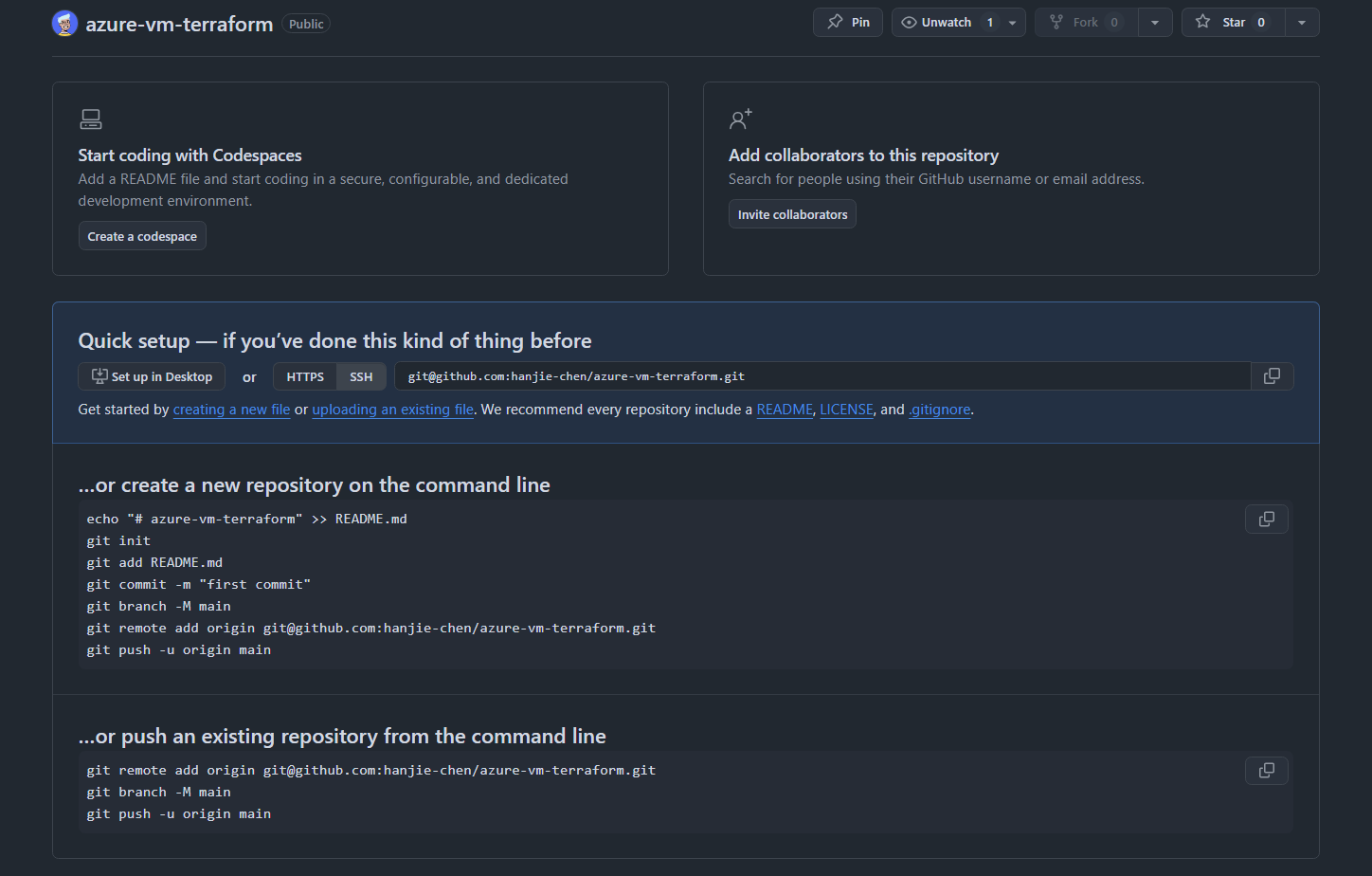
After creating a repository on GitHub, GitHub will show you what to do next. Follow the repository’s instructions to initialize the local repository and complete the first push.
Local Workflow
git status
Displays the current state of the repository.
git add
I usually go directly to the project root directory and run git add . to include everything. This command adds modified files to the staging area.
git commit
1 | |
Each commit records who made which changes and when, allowing you to return to that state later.
Commit ID
- After each successful commit, Git generates a unique 40-character hexadecimal string called a SHA-1 hash, which serves as the commit ID.
- Even changing a single space will produce a completely different SHA ID.
- When running commands or performing a DevOps rollback, the first seven characters of the SHA, such as
a1b2c3d, are usually enough to identify the commit precisely.
View the commit history and its corresponding SHA IDs:
1 | |
If you have forgotten the details of the most recent commit, use:
1 | |
By default, this command displays the contents of HEAD, which is the latest commit on the current branch. You can also append a specific SHA ID to inspect an earlier commit: git show <SHA>
git add + git commit
For tracked files: If you have only modified tracked files and do not need to add any new files, you can commit the changes directly with git commit -a -m "message". This command automatically commits modifications to all tracked files, so you do not need to run git add first.
For new files: You must add them to the staging area with git add, because Git tracks only files that have already been added to version control. New files must first be added with git add before they become tracked. In this case, you can use:
1 | |
Remote Sync
git push
Push local content to GitHub to synchronize it.
First Push of a New Branch
If you have created a new local branch that does not yet exist in the remote repository, use the -u option the first time you push it:
1 | |
This command performs two tasks:
- Creates the remote branch: It creates a new branch with the same name in the remote repository, such as GitHub, and uploads the code.
- Establishes an upstream relationship: It links the local branch to the remote branch.
Without the -u option—using only git push origin <branch-name>—the branch will still be created remotely, but no default upstream relationship will be established. This means you will not be able to use the shorter git push command later. Git will report an error because it does not know which remote branch should receive the local branch.
Push Rejected
Sometimes, running git push produces an error like this:
1 2 3 4 5 6 7 8 9 | |
This means the remote repository contains commits that do not yet exist locally. You must first run git pull to synchronize the latest changes.
git pull
As the counterpart to git push, git pull synchronizes the latest changes from a remote repository, such as GitHub, to the local repository.
Suppose we develop the same project on multiple machines—an Azure VM, a local PC, and a MacBook Pro—and run git push on one of them. The other machines then need to run git pull so their local code catches up with the latest remote state.
By default, running git pull on a branch updates only the current local branch. It does not automatically update other local branches, although it will usually refresh information about remote-tracking branches.
How git pull Works
More precisely:
git pull = git fetch + git merge
- git fetch: Retrieves the latest commits from the current remote branch.
- git merge: Attempts to merge those commits into the current local branch.
Therefore, the current local branch is actually updated. Other local branches do not automatically move forward, although information about remote-tracking branches is usually refreshed.
Divergent Branches
Suppose the latest code in the remote repository on GitHub has been modified, while the local code has also been modified and committed with git add and git commit.
Even if the changes do not conflict, running git pull locally may produce the following message:
1 2 3 4 5 6 7 8 9 10 11 12 13 14 15 16 17 18 19 20 21 22 | |
Git is asking for your preference: because both the remote repository on GitHub and the local repository contain different new commits—known as divergent branches—how would you like Git to combine them?
You can use rebase to move your local commits so that they come after the remote commits.
Run the following command in your repository directory:
1 2 | |
This performs two operations: it first retrieves the remote updates, then replays your local commits one by one after the latest commit on origin/main. If there are no conflicts, the operation will complete successfully.
Afterward, run git push.
Git State Flow
To understand what the preceding commands do, first think of Git as several distinct state areas.
1 2 3 4 5 | |
Working Directory: Where you edit files.Staging Area: The area containing changes prepared for a commit after runninggit add.Local Repository: The content stored in the local repository after runninggit commit.Remote Repository: The content stored remotely after runninggit push.
From this perspective, git add, git commit, and git push each move content forward by one stage, while git pull synchronizes the latest state of the remote repository back to the local repository.
Branch Management
List Branches
View local branches:
1 2 | |
View remote branches:
1 2 3 4 | |
View all local and remote branches:
1 2 3 4 5 | |
Note
After git clone, Git brings information about the remote repository’s branches into the local repository, but by default it checks out only the remote repository’s default branch, usually main.
Therefore, git branch will usually show only the main branch, while git branch -r will show the remote branches.
Switch Branch
The git checkout <branch-name> command first looks for a local branch named branch-name. If it finds one, it switches to that branch.
If it does not find a local branch, it looks for a remote branch named branch-name. If it finds one, it creates a local branch with the same name, establishes a tracking relationship, and then switches to the new local branch.
For example:
1 2 3 4 5 6 7 8 9 | |
Create Branch
The git checkout -b <branch-name> command creates a new branch and immediately switches to it. If the branch already exists, Git reports an error.
This command is shorthand for git branch <branch-name> followed by git checkout <branch-name>.
The new branch is based on the branch that is currently checked out. For example, if you are currently on the main branch, the new branch-name branch will be created from main.
First Push to Remote
After creating a branch, it exists only locally. Because the corresponding remote branch does not yet exist, use the following command for the first push:
1 | |
If specifying the branch name every time feels cumbersome, you can configure Git’s push behavior:
1 | |
After this setting is applied, running git push automatically pushes the current branch to a remote branch with the same name, creating it if it does not already exist.
Parallel Branch Work
Suppose we encounter the following situation:
We are developing on the main branch while interacting with a coding agent such as Codex or Claude Code. The agent may run for a long time, so we do not need to watch it continuously.
Meanwhile, we want to inspect or modify something on another branch named k8s-lab. What should we do?
If both sessions share the same Git working directory, running the following command directly in the current directory:
1 | |
will switch the files in that directory to the state of the k8s-lab branch. As a result, the working directory used by the agent session running on main will also change, potentially disrupting its context or execution environment.
Note
This also explains why tmux cannot truly solve this problem.
tmux merely provides multiple terminal sessions. If those terminals all operate on the same Git directory, running git checkout in any one of them changes the directory state seen by all the others because they share the same working directory.
This is where the git worktree command is useful.
It creates another independent working directory for the same Git repository and usually checks out a particular branch in that directory.
For example:
1 2 3 | |
In this setup:
- The
website/worktree currently hasmainchecked out. - The
website-k8s/worktree currently hask8s-labchecked out.
A coding agent session can therefore continue running on the main branch, while we enter the other worktree to inspect or modify code on the k8s-lab branch without affecting the agent.
You can think of a worktree as expanding a branch into an independent working directory.
In the earlier Git State Flow, the Working Directory represents the location where files are edited. git worktree allows the same repository to have multiple independent working directories at the same time.
Note
By default, the same branch cannot be checked out in two worktrees at the same time.
Usage:
Create a new worktree:
1 | |
- Creates a new directory at
../website-k8s. - Checks out
k8s-labin that directory.
In other words: git worktree add <path> <branch>.
View the list of worktrees:
1 | |
Remove a worktree:
1 | |
If the worktree still contains uncommitted changes, Git may refuse to remove it by default.
Merge Branch
After developing on a branch and reaching a suitable point—for example, completing a feature or finishing a development stage—you can merge the work from that branch into main.
Follow these steps.
First, switch to the main branch:
1 | |
Merge the branch into main:
1 | |
Push the updated main branch to the remote repository, if one exists:
1 | |
Delete Branch
After development on a branch is complete and the branch has been merged into main, you can delete it to keep the repository tidy.
First, delete the local branch.
Delete Local Branch
Use the lowercase -d option to safely delete a branch that has already been merged into the current branch:
1 | |
For example: git branch -d backend-development
If the branch has not been merged, Git will display a warning and prevent its deletion.
To force-delete a local branch:
If you are certain that you want to delete an unmerged branch, use the uppercase -D option:
1 | |
Note
Running git branch -d <branch-name> deletes only the local branch. It has no effect on the branch in the remote repository, such as GitHub.
Next, delete the remote branch.
Delete Remote Branch
Use the following command:
1 | |
Rollback
git restore
Suppose you have modified a file but have not run git add, for example:
1 2 3 4 5 6 7 8 9 10 | |
In this situation, discarding the changes is straightforward. Use the command shown in Git’s message:
1 | |
Keep the following points in mind:
- This operation immediately discards all changes made to
compose.yml. - This operation cannot be undone, so confirm that you truly want to abandon the changes before running it.
If you want to inspect the changes before discarding them, use:
1 | |
This displays the exact changes so that you can decide whether to discard them.
If the changes have already entered the staging area, git restore <file> is not sufficient. You will need another method to handle the staged changes.
git reset
git reset moves the current state back to a specified point.
Reset to the Last Commit
If you only want to discard local changes that have not yet been committed, use:
1 | |
Here:
HEADpoints to the latest commit on the current branch.--hardresets both the Working Directory and the Staging Area.
This command therefore clears changes from the working directory and staging area, but it does not move the local branch back to an earlier commit.
Reset to the Remote Branch
If you want to discard all local changes and local commits, keeping only the latest state of the remote repository, use:
1 2 | |
Here:
git fetch originretrieves the latest state of the remote repository without automatically merging it.origin/mainpoints to the latest position of the remote repository’smainbranch.git reset --hard origin/mainforcibly resets the current branch to the state of the remote branch.
This clears:
- Changes in the Working Directory.
- Changes in the Staging Area.
- Unpushed local commits in the Local Repository.
Rollback Scope
1 2 3 4 5 6 | |
Remote Repository
Clone Repository
To clone a remote repository locally, use the git clone [url] command. For example:
1 | |
This command creates a local folder with the same name and downloads the contents of the remote repository into it.
1 2 3 4 5 6 7 8 9 10 | |
Note
For now, you can think of this as downloading the remote repository locally. However, it is more complete than an ordinary download because it also includes the Git history and repository metadata.
To specify the destination folder, append its path to the end of the git clone command. For example:
1 | |
Note
If the destination directory already exists, it must usually be empty.
Shallow Clone
Sometimes, we only need the current code from a remote repository—for example, when working with a knowledge base repository—and do not need its history. In that case, use the following command to retrieve only the current content:
1 | |
By default, git clone downloads the repository’s complete history.
The --depth 1 option tells Git to retrieve only the latest commit state and omit all earlier history.
This reduces the storage space and download time required for the repository’s historical changes.
HTTPS vs. SSH
There are two ways to run git clone: using HTTPS or SSH. For example:
1 2 | |
The difference between these two methods lies in how authentication works:
- HTTPS: When running
git push, you need additional authentication, such as signing in through a browser or using a token. - SSH: Relies on a local SSH key and the corresponding public key configured on GitHub.
In general, the second method is preferable: configure an SSH key and use Git over SSH.
Manage Remote
View Remote
Use the following command to view the remote URLs associated with the current Git repository:
1 | |
After running the command, you will see output similar to this:
1 2 | |
Here, origin is the default remote name, followed by the remote repository’s URL. If you have multiple remote repositories, they will all be listed here.
Change Remote URL
If the repository name on GitHub has changed, or if you want to switch the remote from HTTPS to SSH, use the following command to update the remote repository URL:
1 2 3 | |